Car Jump Ai Video Editing Prompt – Friends, if you’re active on social media or interested in editing, you’ve likely noticed that a lot of video editing is currently going viral on social media, created with the help of AI. Every day, a new video editing trend emerges, featuring videos edited in a unique way—meaning they’re created with the help of AI, making them look quite realistic. Similarly, a new video editing technique is currently going viral on social media, featuring car video editing. You’ve likely seen this type of viral car AI video editing. So, friends, if you want to create your own viral AI video editing, follow this article. In this article, I’ll teach you in detail, with easy steps, how you can create your own viral car realistic AI video editing.
Details Of Car Jump Ai Video Editing Prompt
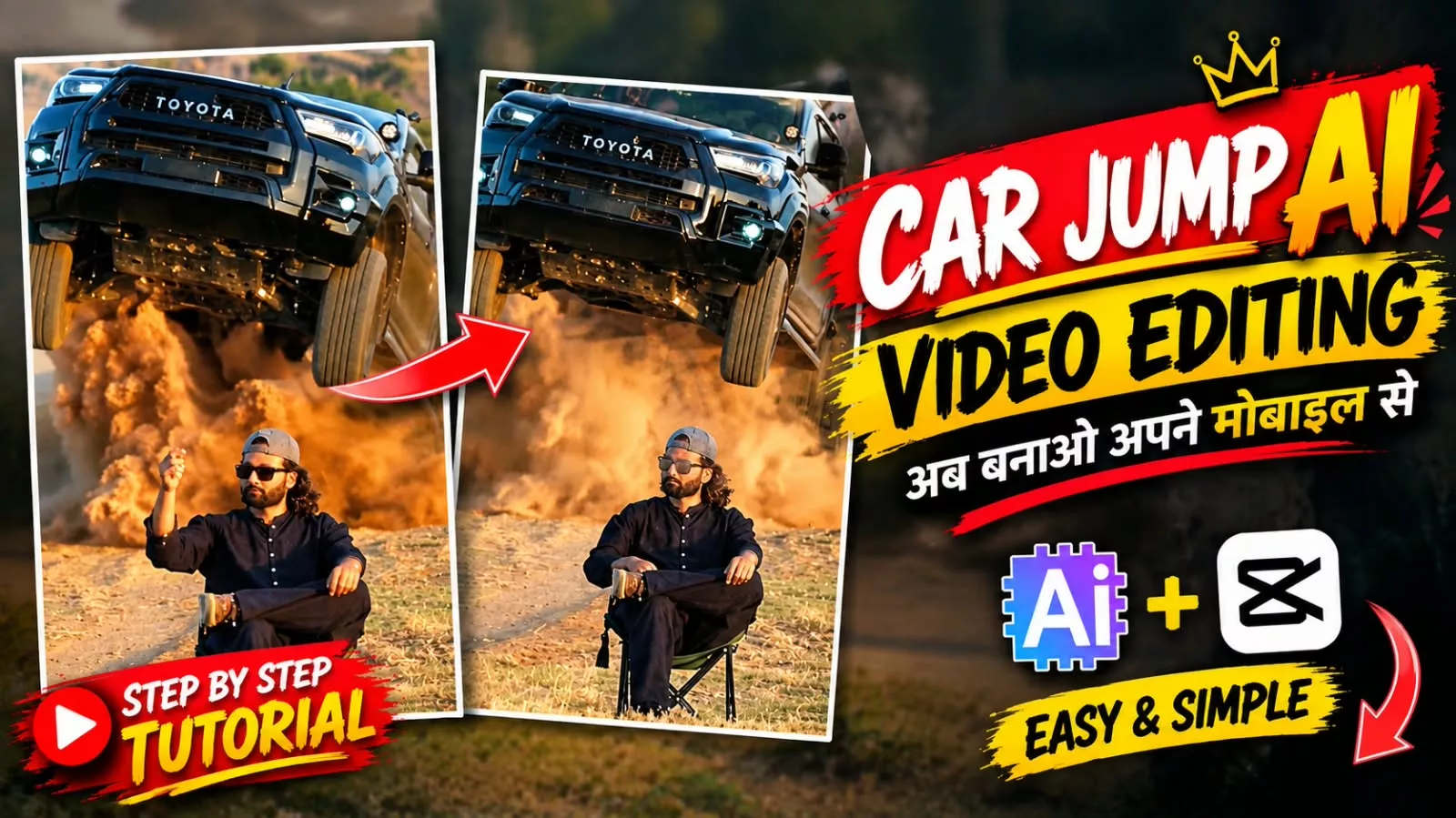
This time, if we talk about video editing, you’ll see a video created in a very realistic manner, which looks very realistic and like a scene from a movie. You’ll see a man sitting on a chair, with a very attitude, raising his hand and snapping his fingers. Then, a car comes jumping from behind him, leaping through the air, and a smooth slow motion effect has been added to the video. The scene in the video is created in a very cinematic look, as if it were a movie scene. You can easily create this type of realistic car jump video with your own face. You’ll be sitting on the chair while the car stunt jump video plays behind you. So, stay tuned to the article and you’ll find the entire process here.
Method Of Generating This Ai Video
Look, let’s talk about the method of creating this video, so friends, we can easily create this video editing in two ways and both the methods are going to be completely different but we are going to create it with the help of the same eye tool. Friends, we will create it with the help of Google Flow Eye, so the first method will be that we will generate the video by giving a video prompt with the reference of one of our images in it and the second method is that we will give a reference video and along with it will give the prompt and photo, then Google Follow will create our same to same video with its help and will make it ready in which our face will also match, so I am going to explain both the processes to you step by step in this article, you can create this video by reading all the steps in the article carefully.
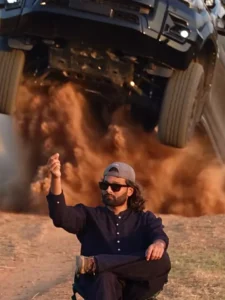
Video Prompt –
Use the uploaded character photo as the exact identity reference for the main character.Create a cinematic video using the reference video as the primary motion and performance guide. Preserve the character's facial identity, facial proportions, hairstyle, skin tone, body proportions, and overall appearance consistently throughout the entire video.The character should perform the same actions, body movements, gestures, timing, posture changes, walking style, and expressions as the person in the reference video. Match the reference video's camera movement, framing, shot composition, perspective, pacing, and transitions as closely as possible.Keep the character's face stable and recognizable in every frame. Do not change the facial structure or make the character look like a different person.Maintain realistic human motion, natural body mechanics, realistic hand and finger movement, natural blinking and facial expressions, and believable interaction with the environment.Preserve the clothing and accessories from the character reference unless the reference video clearly requires a different outfit.Use realistic cinematic lighting, natural shadows, detailed skin texture, realistic hair movement, and high-quality photographic rendering.The final result should look like the character from the uploaded photo was actually filmed performing the reference video's actions, rather than an Al-generated person imitating the character.Priority:1. Character identity consistency2. Accurate motion and acting from the reference video3. Accurate camera movement and composition4. Natural realistic movement5. Cinematic visual qualityAvoid face morphing, identity drift, distorted hands, extra fingers, unnatural limbs, body deformation, flickering, changing clothes, changing hairstyle, inconsistent facial features, or cartoon/anime appearance.
How To Generate Video In Flow Ai?
Friends, the method for creating this viral video is quite simple. First, I’ll show you how to create an AI video using a reference video. To do this, you need to save the reference video using the Reference Video button provided in this article. Then, copy the video prompt from the article. Clicking the Generate Video button will take you directly to the Flow Eye website. After signing up, click on “New Project.” Click the plus icon above to add the reference video and then a photo. Paste the video prompt and set the video to 16:9. Then, click the “Generate” button and wait. In a short time, your viral AI video will be created and ready.
How To Generate Image Using Photo?
Friends, if you want to create this video using only your photos, you should follow this process. First, copy the video prompt provided in the article. Then, using the “Generate Your Video” button, you’ll need to visit the Flow AI website. Here, click on “New Project,” click on the plus icon, and add the reference image you want to create the video from. Then, paste the video prompt and select “Generate.” Wait a few moments and your viral car jump video will be ready. However, there’s a high chance your face may be mismatched. It’s much better to follow the reference video method, and your video will be ready with a near-identical result.
Conclusion
So friends, this way you too can easily create this viral AI video editing technique. In this article, I’ve explained the entire process in easy steps, demonstrating how you can create this viral AI video editing technique for free. I hope you’ve understood the process in simple steps, and now you’ll be able to create your own AI video editing technique without any problems. If you want to learn such unique and trendy editing techniques, keep visiting our website. Here, you’ll be taught the latest trends in editing techniques using simple steps. If you liked this article, please share it.